
How to Turn Off Find My iPhone: Step-by-Step Guide

Contents
hide
1
How to Turn Off Find My iPhone: A Step-by-Step Guide
How to Turn Off Find My iPhone: A Step-by-Step Guide
Find My iPhone helps you locate your Apple device if it gets lost or stolen. However, you may need to disable it when selling your iPhone, trading it in, transferring ownership, or changing certain privacy settings.
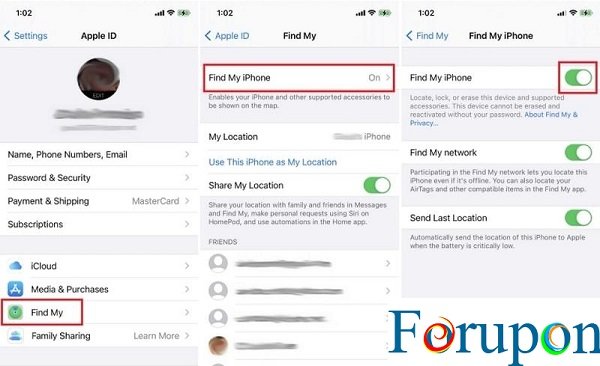
To turn off Find My iPhone, open Settings, tap your name, select Find My, choose Find My iPhone, and switch off the feature. Enter your Apple Account password when prompted and confirm your choice.
Before disabling it, understand that Find My is connected to Apple’s Activation Lock security feature. Turning it off removes this protection from the device, making it possible for another person to activate the iPhone with their own Apple Account.
This guide explains how to disable Find My iPhone, what happens afterward, how to manage your location-sharing settings, and what to do if you cannot turn the feature off.
How to Turn Off Find My iPhone
You can turn off Find My directly through your iPhone’s Settings app. You do not need to download additional applications or visit an external website if you still have access to your device.
Follow these instructions:

-
Open the Settings app on your iPhone.
-
Tap your name or Apple Account profile at the top of the screen.
-
Select Find My from the available options.
-
Tap Find My iPhone.
-
Turn off the Find My iPhone switch.
-
Enter your Apple Account password when requested.
-
Tap Turn Off to confirm.

Once the process finishes, Find My iPhone will be disabled for that device.
These instructions follow Apple’s published iPhone user guide.
How to confirm Find My iPhone is turned off
You can check the setting to make sure the process was successful.
-
Open Settings.
-
Tap your name.
-
Select Find My.
-
Tap Find My iPhone.
-
Check the status of the Find My iPhone switch.
If the switch is off, the feature has been disabled.
Important: Turning off Find My iPhone also removes Activation Lock automatically. This is particularly important if you intend to sell or give away your device.
How to Turn Off Find My iPhone Before Selling or Trading It In
If you are selling, trading in, or giving away your iPhone, disabling Find My is an important part of preparing the device for its next owner.
Apple uses Activation Lock to prevent unauthorized people from activating a device associated with someone else’s Apple Account.
When you turn off Find My iPhone, Activation Lock is automatically removed. This allows the next owner to set up the device using their own account.
However, disabling Find My is only one part of the preparation process.
Step 1: Back up your iPhone
Before erasing your device, make sure you have saved important information.
You can create an iCloud backup or use a computer to back up your iPhone.
Check that your important information, including photos, contacts, messages, and other personal data, is available in your backup or transferred to your new device.
Step 2: Turn off Find My iPhone
Follow the regular instructions:
-
Open Settings.
-
Tap your name.
-
Select Find My.
-
Tap Find My iPhone.
-
Turn off the setting.
-
Enter your Apple Account password.
-
Confirm the action.
Step 3: Sign out of your Apple Account
After backing up your information, sign out of your Apple Account if you are preparing the device for another person.
The available sign-out options and confirmation screens can vary by iOS version.
Step 4: Erase all personal information
Open:
Settings → General → Transfer or Reset iPhone → Erase All Content and Settings.
Follow the instructions displayed on your screen.
If your iPhone uses an eSIM, pay attention to the option concerning whether to erase the eSIM when preparing the device for a new owner.
Erasing the device removes its personal content and settings. It also turns off Find My and Activation Lock when the process completes.
Apple Support (UK)

Step 5: Check that the iPhone is ready for its next owner
After the erase process, the iPhone should display its initial setup screen.
This indicates that the device has been reset and is ready for a new setup.
If you are trading in your device, follow the additional instructions provided by your carrier, retailer, or trade-in provider.
Helpful tip: Do not manually delete individual photos, contacts, or other iCloud-synchronized information as a substitute for erasing the device. Deleting synchronized information can also remove it from your other Apple devices and iCloud.
How to Turn Off Find My iPhone Without Your Phone
If you no longer have access to your iPhone, you may still be able to manage its association with your Apple Account through Apple’s Find Devices website.
This is useful if you have already sold your iPhone, given it away, or forgotten to disable Find My before losing access to the device.
Step 1: Open iCloud Find Devices
Visit:
Sign in using the Apple Account associated with the missing or transferred iPhone.
Step 2: Select your iPhone
Open the device list and select the iPhone you want to manage.
Make sure you choose the correct device, particularly if several Apple devices are connected to your account.
Step 3: Choose the appropriate removal option
Apple provides options to remove devices and manage Activation Lock.
The available actions depend on whether the iPhone is online or offline and whether it has already been erased.
If you still have access to the device, disabling Find My directly through Settings is the recommended approach.
If you have already sold or given away the device, Apple provides a separate process for remotely erasing it and removing Activation Lock.
Step 4: Erase the device if you no longer have it
If you have transferred ownership and forgotten to turn off Find My, you may need to remotely erase the iPhone first.
After the erase process completes, select Remove This Device and confirm.
If the device is offline, the remote erase request begins when it next connects to the internet.
Important: Remote erasure permanently deletes the device’s local content. Do not use this process on a phone you are trying to locate or recover. If your iPhone is lost or stolen, use Lost Mode and Apple’s recovery guidance instead.
How to Stop Sharing Your Location Without Turning Off Find My
Sometimes, you do not actually need to disable Find My iPhone.
You may simply want to stop sharing your location with other people while keeping the ability to locate your own device.
Apple provides a separate setting for this purpose.
Stop sharing your location with everyone
Follow these instructions:
-
Open the Find My app.
-
Tap the Me tab.
-
Turn off Share My Location.
This stops sharing your location with people through Find My without requiring you to disable Find My iPhone itself.
Stop sharing your location with one person
If you only want to stop sharing your location with a particular person:
-
Open Find My.
-
Tap People.
-
Select the person’s name.
-
Tap Stop Sharing My Location.
-
Confirm your choice.
The other person will no longer see your shared location through Find My.
Apple notes that people you previously shared your location with may notice when sharing stops.
These settings serve different purposes. Understanding the difference helps you avoid disabling more functionality than necessary.
| Setting | Main purpose | What happens when disabled |
|---|---|---|
| Find My iPhone | Helps locate your device | Device tracking through Find My is disabled |
| Share My Location | Shares your location with people | People you shared with cannot see your shared location |
| Location Services | Allows apps and system services to access location | Location access is restricted for affected services |
| Find My network | Helps locate supported devices through Apple’s network | Additional offline-finding capability is disabled |
If your main concern is personal privacy, changing Share My Location may be sufficient.
If you are selling your iPhone, disabling Find My iPhone is the more appropriate step.
Apple’s documentation explains these settings separately, including the consequences of disabling device tracking.
What Happens When You Turn Off Find My iPhone?
Before disabling the feature, it is worth understanding what changes.
Related Posts
Find My is not simply a location-sharing application. It also provides important security and device-recovery functions.
Here are the main consequences.
1. You can no longer locate the iPhone through Find My
When Find My iPhone is disabled, you lose the ability to use Apple’s Find My service to locate that device.
This means you cannot rely on the feature to find, lock, or remotely erase the iPhone if it subsequently goes missing.
2. Activation Lock is removed
Activation Lock is Apple’s anti-theft protection associated with Find My.
When Find My is turned off, Activation Lock is automatically removed.
This allows someone else to activate the device using their own Apple Account.
This is beneficial when selling or transferring ownership, but it reduces the device’s protection if you are keeping it.
3. Find My network functionality is disabled for that device
The Find My network helps locate supported devices even when they are not connected to the internet in the usual way.
Turning off Find My removes the device’s access to these Find My recovery capabilities.
4. Your other Apple devices are not automatically affected
Disabling Find My on one iPhone does not mean you have automatically disabled the feature on every other device associated with your Apple Account.
You should check each device individually if you intend to change its settings.
Should you turn off Find My iPhone?
Consider the following situations:
| Situation | Recommendation |
|---|---|
| Selling your iPhone | Turn it off before transferring ownership |
| Trading in your device | Turn it off as part of preparation |
| Giving your iPhone away | Turn it off before transferring ownership |
| Keeping your iPhone | Generally keep it enabled |
| Wanting to stop sharing your location | Disable Share My Location instead |
| Losing your iPhone | Keep Find My enabled and use Lost Mode |
Security recommendation: If you are keeping your iPhone, leaving Find My enabled is generally the safer choice. It provides an additional recovery option if your device is lost or stolen.
Apple also advises users not to remove a device from Find My while processing a theft-related AppleCare+ claim until the claim has been fully approved.
Why Can’t I Turn Off Find My iPhone?
If the Find My iPhone switch will not turn off, or your device asks for additional authentication, there may be a security or account-related reason.
Here are the most important things to check.
1. You forgot your Apple Account password
Apple requires your Apple Account password when disabling Find My on an iPhone.
If you cannot remember it, use Apple’s official account recovery process.
Visit:
Follow the instructions to reset your password or recover access to your account.
Once you regain access, return to Settings and try disabling Find My again.
Do not use third-party websites or services that claim to bypass Apple’s Activation Lock.
2. Stolen Device Protection is enabled
Stolen Device Protection adds security requirements to certain important changes made to your iPhone.
When this feature is enabled, Apple does not allow you to turn off Find My until Stolen Device Protection has been disabled.
Depending on your security settings and location, you may need to complete additional authentication or wait through a security delay.
To check the setting:
-
Open Settings.
-
Select Face ID & Passcode or Touch ID & Passcode, depending on your device.
-
Enter your device passcode.
-
Tap Stolen Device Protection.
-
Review its current status.
-
Follow Apple’s security requirements to turn it off if appropriate.
If a security delay is required, complete the process rather than trying to bypass it.
Stolen Device Protection is designed to prevent unauthorized changes, especially when an iPhone is away from familiar locations.
3. Your Apple Account has authentication problems
If your Apple Account is not accessible, you may be unable to complete the process.
Check that:
-
You are using the correct Apple Account.
-
You can sign in successfully.
-
You have access to your trusted phone number or trusted device when required.
-
You have completed any security verification requested by Apple.
If you cannot regain access, contact Apple Support for assistance.
4. Your device is managed by an organization
Some iPhones are managed by employers, schools, or other organizations.
These devices may have management policies that restrict certain account or security settings.
If your iPhone belongs to an organization, contact its IT administrator before attempting to change restricted settings.
5. You are trying to remove a device instead of disabling Find My
Another common source of confusion is the difference between turning off Find My on the iPhone and removing a device from the Find My list.
These are different actions.
-
Turn off Find My: Disables the tracking feature and removes Activation Lock.
-
Remove a device: Removes the device from your account or device list under Apple’s applicable removal procedures.
If you still have your iPhone, use the Settings method.
If you no longer have it, use Apple’s official iCloud removal instructions.
12. Frequently Asked Questions
1. How do I turn off Find My iPhone?
Open Settings, tap your name, select Find My, and tap Find My iPhone. Turn off the switch, enter your Apple Account password, and confirm by tapping Turn Off.
2. Can I turn off Find My iPhone without my Apple Account password?
You generally need your Apple Account password to disable Find My directly on the iPhone. If you have forgotten it, use Apple’s official account recovery website at iforgot.apple.com.
3. Does turning off Find My iPhone disable Activation Lock?
Yes. Apple automatically removes Activation Lock when Find My is turned off. This allows another person to activate the device using their own Apple Account.
4. Can I turn off Find My iPhone remotely?
If you no longer have your iPhone, you can manage its removal and Activation Lock through iCloud Find Devices. Depending on its status, you may need to erase the device before removing it from your account.
5. Will someone know if I turn off Find My iPhone?
Apple’s location-sharing behavior depends on the action you take and the software version. People you share your location with may notice when sharing stops. Do not assume that disabling Find My or changing location settings will be invisible to others.
6. Does turning off Find My iPhone delete my photos?
No. Simply disabling Find My iPhone does not erase your photos, contacts, messages, or other personal information.
However, if you erase your iPhone as part of preparing it for sale, the local data on the device will be deleted.
7. Can I turn off Find My iPhone temporarily?
You can turn Find My off and later enable it again through Settings, provided you have the required account access and authentication.
However, while it is disabled, you lose its device-recovery and Activation Lock protection.
Find My iPhone helps you locate and protect your Apple device. Share My Location allows you to share your location with other people.
You can turn off location sharing without disabling Find My iPhone.
9. Why is Find My iPhone greyed out?
A greyed-out setting may indicate that a security requirement, account restriction, or device-management policy is preventing changes.
Check Stolen Device Protection, your Apple Account access, and any organizational management restrictions.
10. Should I turn off Find My before selling my iPhone?
Yes. Apple recommends turning off Find My before selling, trading in, or giving away your iPhone. This also removes Activation Lock, allowing the next owner to activate the device.
13. Conclusion
Turning off Find My iPhone is a straightforward process. Open Settings, tap your Apple Account name, select Find My, choose Find My iPhone, and disable the setting using your Apple Account password.
If you are selling, trading in, or giving away your device, remember to back up your information, remove your personal data, and make sure Activation Lock has been removed.
If your goal is simply to stop sharing your location with other people, you do not necessarily need to disable Find My. Changing Share My Location is often the better option.
Choose the setting that matches your needs while keeping your device’s security and privacy in mind.